Setting up Hand2Note to Play in Apps via Emulator
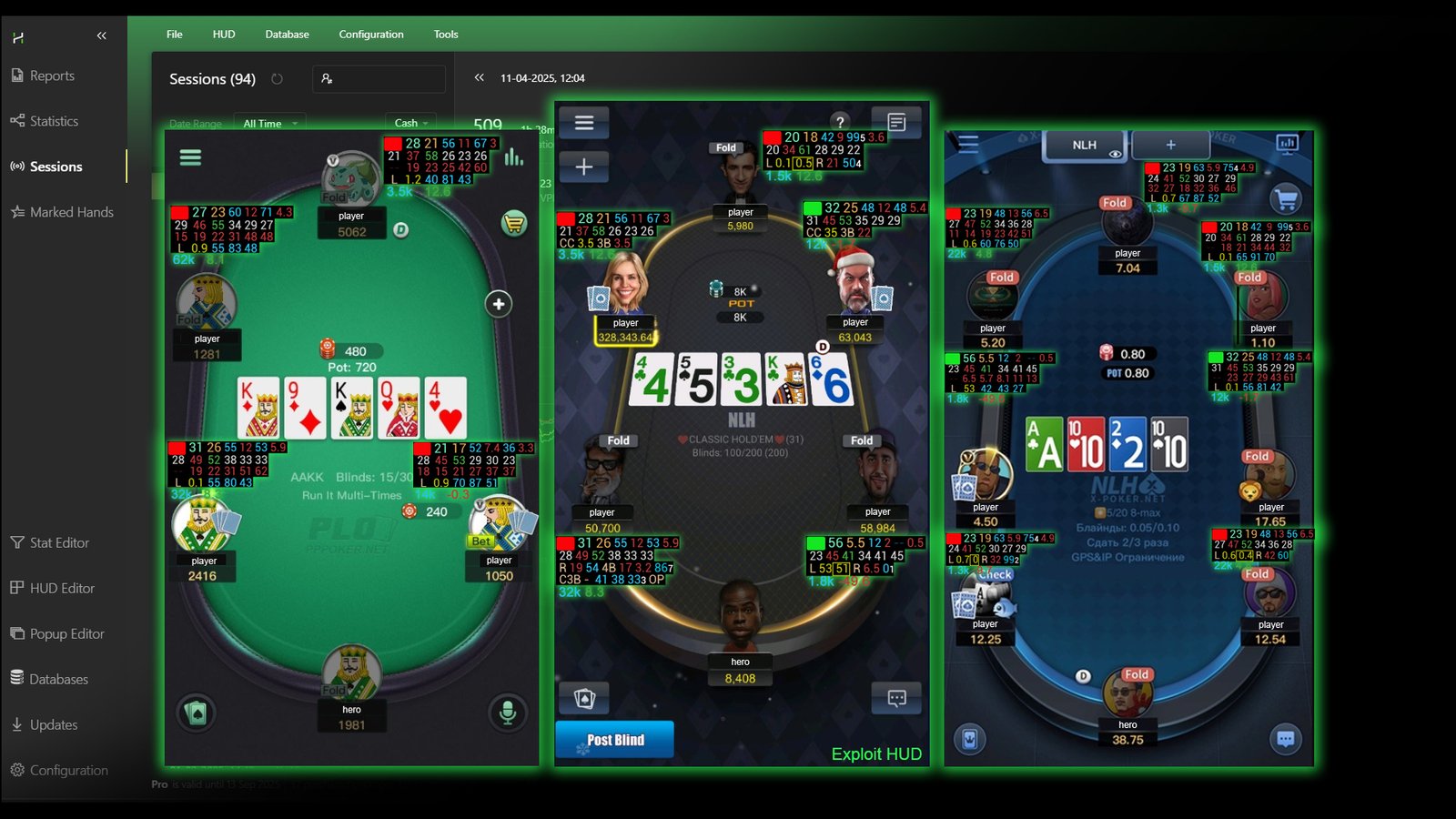
Hand2Note allows you to display HUDs and Popups, collect statistics not only in classic rooms like PokerStars or RedStar, but also in many mobile poker applications like PokerBros or CoinPoker.
This feature gives an advantage in the game because in applications most opponents use smartphones to play. When playing via smartphones, the output and collection of statistics is not possible at the moment. As a result, you will see your opponents’ weaknesses, but they will not see yours.
Setting up programs to play through Android emulators
For setup, you will need:
- Android emulator (for example: “LDPlayer”);
- The installation file of the poker app to be installed in the Android environment (file extension must be “.apk”);
- Hand2Note with an active subscription.
Stages of setting up programs to successfully output and collect statistics on tables:
- Install the Android Emulator on your computer;
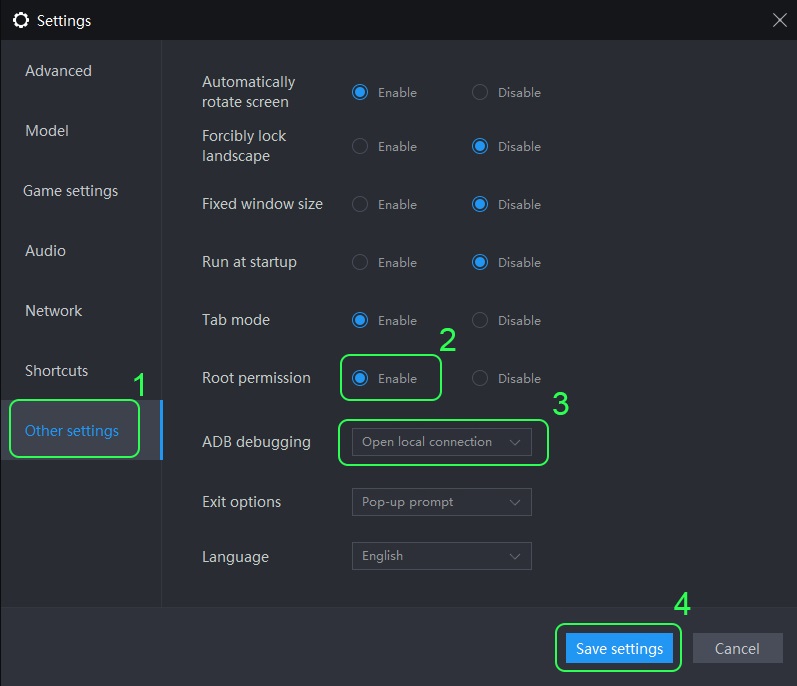
- Create an emulation environment in the emulator and enable “ROOT access” in it. Also, set “Open local connection” in the “ADB debugging” parameters;
- Launch the created Android emulation environment and install the required poker application into it;
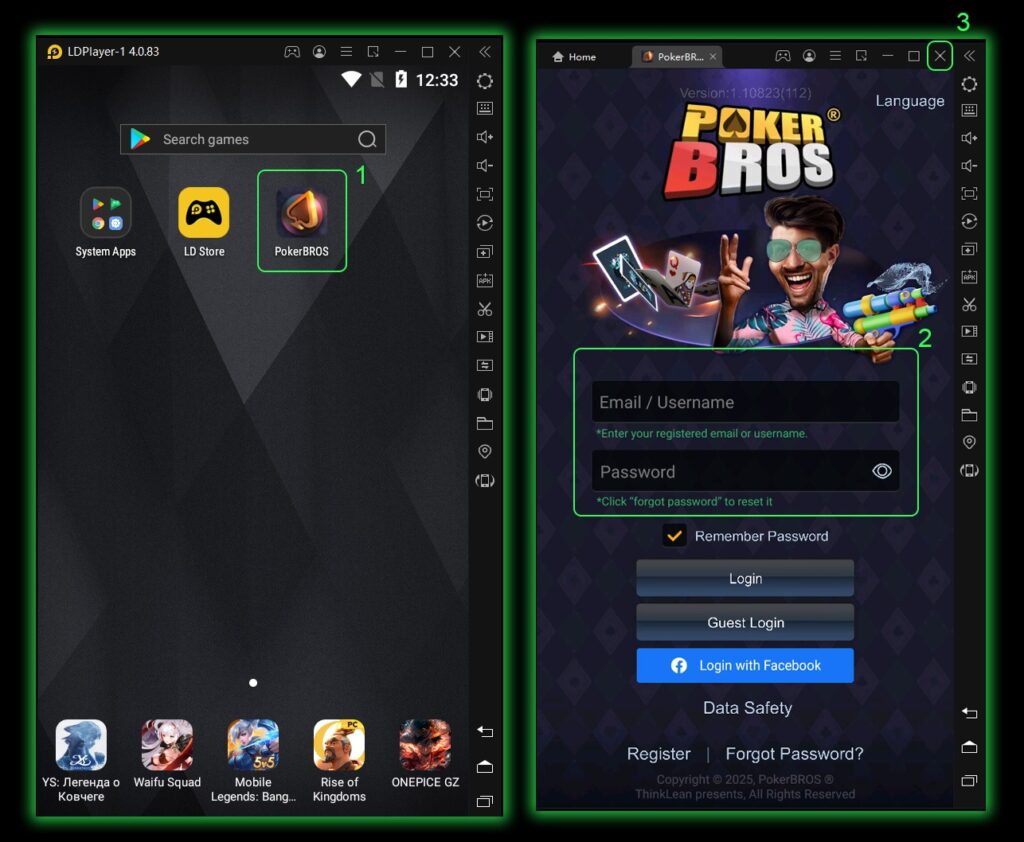
- After installation, run it, wait for the login and password entry window to open in it, and close the emulation environment;
- Flash the application in the emulation environment using Hand2Note. To do this – start Hand2Note, then start the emulation environment and wait for a couple minutes.
After completing all the steps, you can register or log in to an already prepared account and start playing.
After flashing the application with Hand2Note – do not run this emulation environment without Hand2Note running before. If you do, the flashing may fail and your account will be seen as a player’s account from a computer. This, in turn, may lead to sanctions from clubs or agents.
Example of settings to play in the “PokerBROS” application
Before setting up, install “LDPlayer” on your computer. Also download the installation file of “PokerBROS” application for Android environment (with “.apk” extension).
The emulator and Hand2Note should always be run as administrator.
Start the “LDPlayer” emulator list by clicking on the shortcut “LDMultiPlayer”(1). Next, create a new emulator by clicking on “New / Clone”(2) and selecting “New LDPlayer”(3). In the new emulator, go to settings by clicking on the gear (4).

Please note, it is forbidden to use, delete or in any way affect the emulator number “0”. Ignore it when configuring or playing.
In the opened “Settings” window in the “Advanced” tab(1) open the “Mobile mode” menu(2). Set the lowest possible resolution (for example: “540×960”)(3).

Next, go to the “Other settings” tab (1). Find the “Root permission” parameter and enable it (2). Next, find the line labeled “ADB debugging” and select “Open local connection” (3) in the drop-down list. Click the “Save settings” (4) button at the bottom of the window to apply changes.
Start the emulator by clicking on the “Start” button (1) and wait for it to open. When the emulator is running, close the advertising banner by clicking on the cross in its upper-right corner(2).

Install the “PokerBROS” application in the running emulator. To do this, press and hold the installation file of the “PokerBROS” application on the desktop with the LMB (1). Drag it to any free space in the emulator (2) and release the LMB (3).

Next, start the “PokerBROS” application in the emulator (1) and wait for it to load until the login and password window (2) pops up. Close the emulator by clicking on the cross in the upper-right corner (3).
Next, launch Hand2Note, and after it, launch the emulator. Wait for a couple of minutes for the emulator flashing process to complete, and you can proceed to registration or play the game.
No manipulations are required in Hand2Note itself. After the setup is done, when you open tables in the application, HUD will automatically appear above the players. Also, statistics will be collected and saved.
The first flashing process is accompanied by spontaneous closing and opening of the emulator. This indicates that the flashing of the application was successful.

Latest guides
-
 Exploit Basics: Passive Player Profile Apr 9, 2026
 -
 Hand2Note Popup Editor: Creating a Professional Popup Mar 28, 2026
 -
 Hand2Note Pro Pricing Reduced in 2026 Mar 19, 2026
 -
 How to Analyze Fish Ranges: Limp, Limp-Raise, and Limp-Fold Mar 13, 2026
 -
 Hand2Note Popup Editor: Creating a Simple Popup Mar 10, 2026
We regularly publish new Hand2Note 4 guides on our Discord server.
Join Discord Server