How to Use Hand2Note on Mac: Complete macOS Guide

For years, using Hand2Note on a Mac required workarounds such as installing Windows or using a separate Windows computer. That is no longer the case.
Hand2Note 4.1+ is available natively for macOS, so you can install and run Hand2Note directly on your Mac without Windows, Boot Camp, Parallels, or other virtualization software. The official Hand2Note website provides separate downloads for Apple Silicon and Intel Macs.
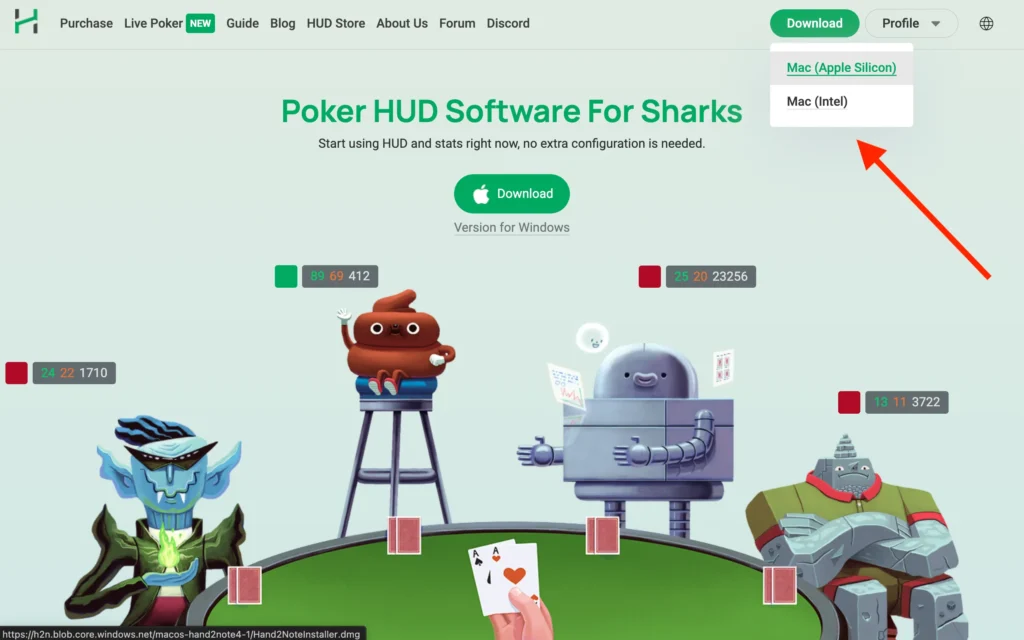
In this guide, we’ll explain which Hand2Note version to download, how to install it on macOS, how to connect your poker rooms, and what you need to know about using the HUD and importing hands on a Mac.
Does Hand2Note Work on Mac?
Yes. Hand2Note 4.1+ supports macOS natively.
This is important because you may still find older articles and forum posts saying that Hand2Note is Windows-only. Those instructions refer to previous versions of the software and are now outdated.
The current Hand2Note website offers two Mac versions:
- Mac (Apple Silicon) — for Macs with Apple M-series chips.
- Mac (Intel) — for older Intel-based Macs.
This means you no longer need to install the Windows version of Hand2Note through Boot Camp, Parallels, CrossOver, Wine, or similar software.
Which Hand2Note Version Should You Download?
Before downloading Hand2Note, check which processor your Mac uses. Click the Apple menu → About This Mac. Look for Chip or Processor. If you see something like Apple M1 / M2 / M3 / M4 / M5, download Hand2Note for Mac (Apple Silicon). If your Mac shows an Intel processor, download Hand2Note for Mac (Intel).
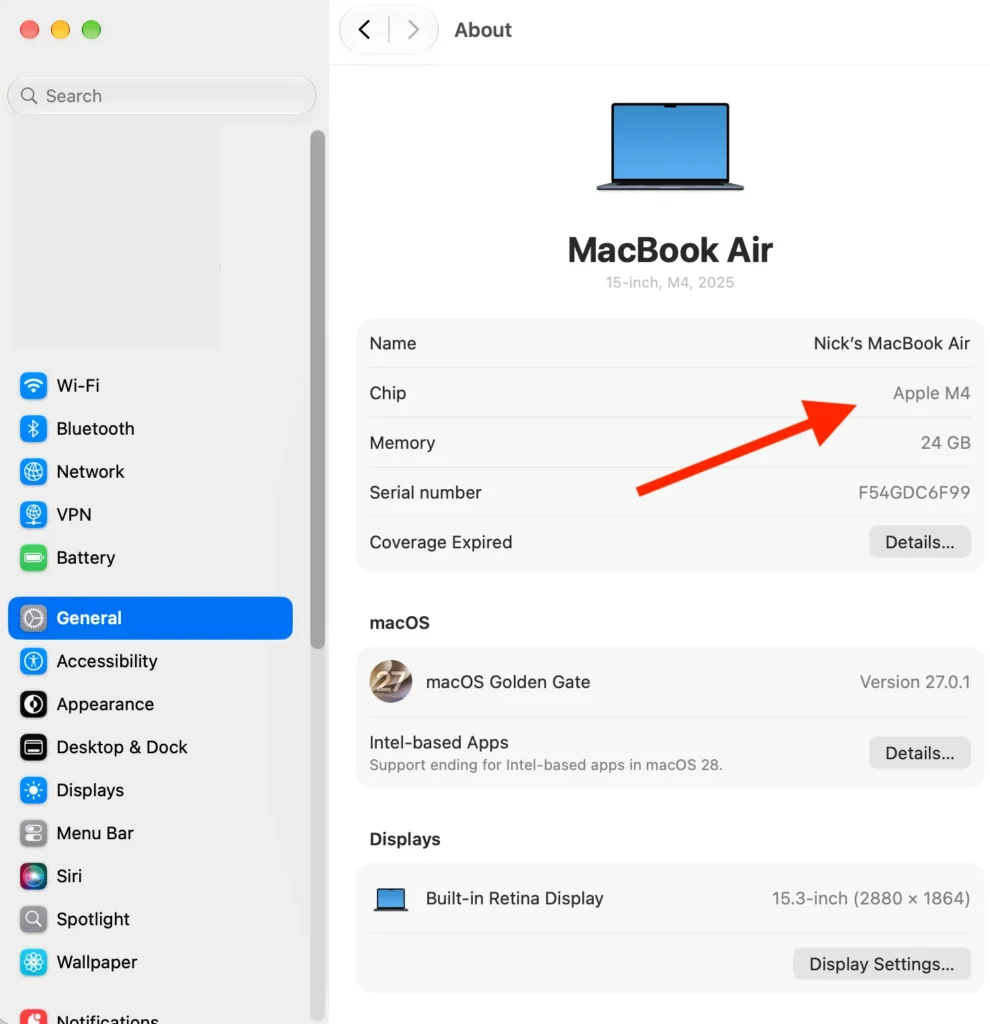
Using the correct build is preferable to trying to run a version designed for a different processor architecture.
How to Install Hand2Note on macOS
Go to the official Hand2Note website and choose the appropriate Mac download. Then:
- Download the macOS version corresponding to your processor.
- Open the downloaded installer.
- Install Hand2Note on your Mac.
- Launch Hand2Note.
- Log in with your Hand2Note account.
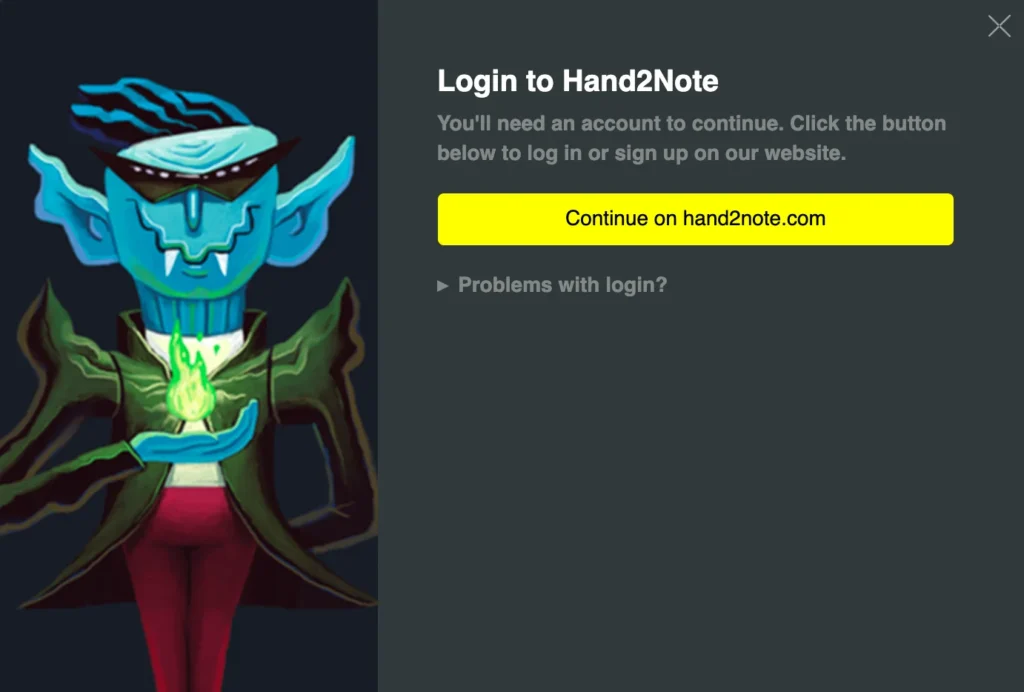
Note: when you launch Hand2Note, you’ll see a login window. Click Continue on Hand2Note.com, and the Hand2Note website will open in your browser. Create an account if you don’t have one yet, then log in. Once you’re authorized, you can return to the Hand2Note app — your account will be remembered, so you won’t need to log in every time you launch it.
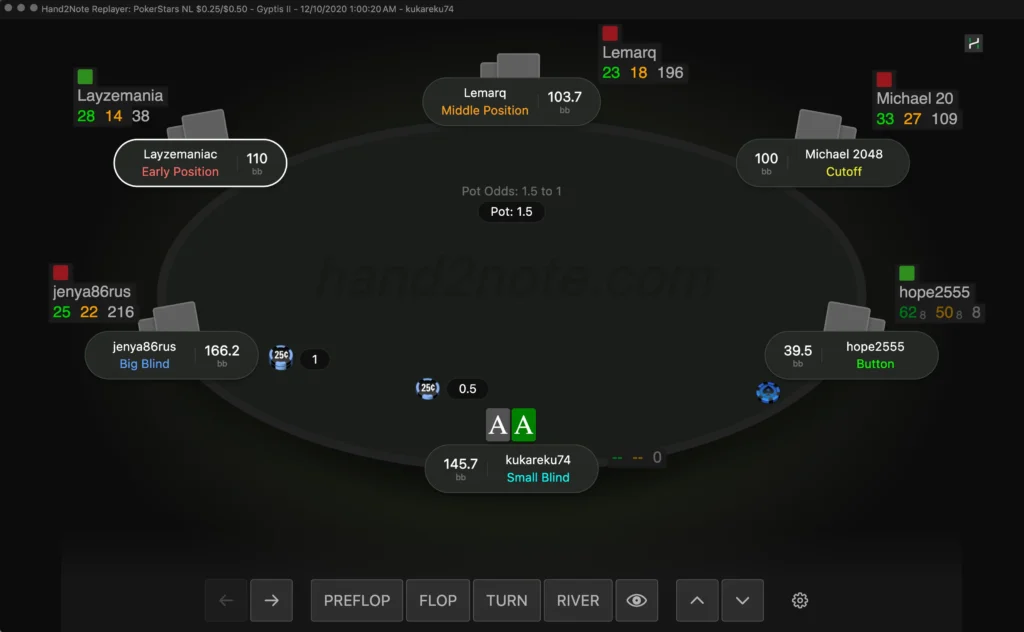
Once installed, you get the same core poker analysis environment: reports, statistics, HUD functionality, hand replayer, HUD Editor, player and population analysis, and the other major Hand2Note tools. The current Hand2Note website explicitly lists Mac alongside Windows and advertises its reporting and HUD functionality.
Setting Up Poker Rooms and HUD on Mac
Setting up poker rooms in Hand2Note on macOS is essentially the same as on Windows. There is no separate Mac-specific configuration process, so you can follow the official Hand2Note Getting Started guide for the general setup.
For most traditional poker rooms that save hand histories locally, the setup works like this:
- Enable local hand history saving in your poker client.
- Make sure hands are saved in English where required.
- Find the folder where the poker client saves your hand histories.
- In Hand2Note, open Configuration → Auto Import.
- Click Add auto import folder… and select the same hand history folder.
- If you play tournaments, some rooms also require you to add the Tournament Summaries folder.
- Open a table and play a few hands to make sure they are being imported and the HUD is updating.
If you need a detailed walkthrough, see our Hand2Note Auto Import guide. It explains how to find the hand history folder, add it to Hand2Note, and verify that new hands are being imported correctly.
The exact setup can vary depending on the poker room. Some rooms require additional configuration, while others don’t save hand histories locally at all. For example, GG Poker Network hands must be downloaded from PokerCraft and imported manually after a session, so Auto Import should not be configured for GG.
Once everything is configured correctly, keep Hand2Note running while you play. On rooms that support a live Hand2Note HUD, new hands will be imported automatically and your opponents’ statistics will update as you play.
Importing Hand Histories on Mac
Importing existing hand histories into Hand2Note on macOS works the same way as on Windows. There is no separate Mac-specific import process.
If you already have hand history files on your Mac, open Hand2Note and use Import → Import from Folder to import an entire folder, or Import from Files if you want to select individual hand history files. Hand2Note will process the hands and add them to your current database.

You can use this to import previously saved sessions, downloaded hand histories from poker rooms, or large hand history archives. For example, rooms such as GGPoker don’t support a live third-party HUD, but you can download your hand histories and import them into Hand2Note for post-session analysis.
Hand2Note can also import existing databases from other poker trackers, including PokerTracker, Holdem Manager, DriveHUD, and previous versions of Hand2Note. These options are available through the Import → Import From Database menu.
Once the import is complete, the hands will be available in Hand2Note’s Reports, where you can review sessions, filter hands, analyze your statistics, and use the rest of Hand2Note’s analysis tools.
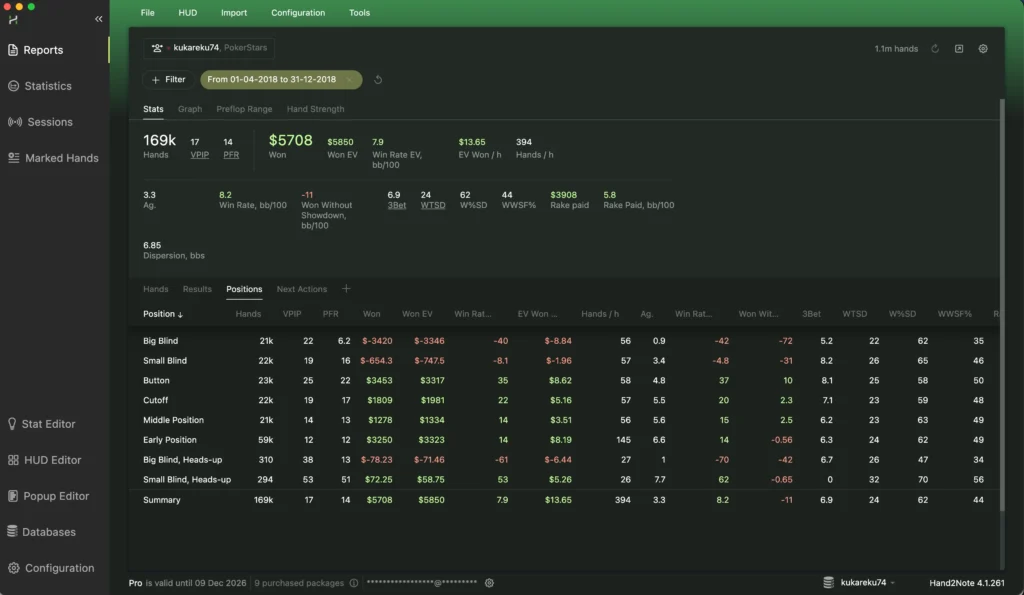
Hand2Note on Apple Silicon Macs
One of the most important changes for modern Mac users is native Apple Silicon support. Hand2Note provides a dedicated Apple Silicon build rather than requiring users with M-series Macs to install the old Windows application through virtualization.
If you’re using a modern MacBook Air, MacBook Pro, Mac mini, iMac, Mac Studio, or Mac Pro with an Apple M-series processor, this is normally the version you should install. This also makes many old tutorials about running Hand2Note through Windows on a Mac obsolete.
Do You Need Parallels, Boot Camp, or CrossOver?
Not for the current macOS version of Hand2Note.
Older Hand2Note guides often recommended installing Windows through Boot Camp or running Hand2Note inside a Windows virtual machine. There was a good reason for this: Hand2Note itself officially stated in its old support documentation that the software worked only on Windows, with Boot Camp suggested as a possible solution.
That information applies to older Hand2Note versions.
With Hand2Note 4.1+ available for macOS, the normal setup is now much simpler:
macOS → native Hand2Note Mac application → native poker client
You shouldn’t install Windows purely to run Hand2Note unless you have another specific reason to use the Windows environment.
Hand2Note Mac vs Windows Updates
For most Mac users, the native macOS version should now be the starting point. There is one thing worth keeping in mind: Hand2Note updates may not always reach Windows and macOS simultaneously.
So if you see a newly announced Hand2Note feature and it isn’t available on your Mac yet, check whether the latest macOS build has already been released before troubleshooting the feature itself.
This does not mean you need the Windows version; it simply means there can occasionally be a short delay between platform releases.
Hand2Note Troubleshooting on Mac: What to Check
If Hand2Note is not working correctly on your Mac — for example, hands are not importing, the HUD does not appear, or the poker room is not being detected — start with a few basic checks.
Most Hand2Note troubleshooting principles are the same on macOS and Windows:
- Make sure you are running the latest version of Hand2Note and the latest version of your poker client.
- Check that the correct Room Module is installed and enabled in Hand2Note.
- Make sure your poker room and hand histories are set to English, where required.
- For rooms that save hand histories locally, verify that they are actually being saved and that Hand2Note is importing them from the correct folder.
- Check whether new hands appear in Hand2Note after you play a few hands. This helps determine whether the problem is with hand importing or specifically with the HUD.
- Make sure your Hand2Note subscription supports the stakes you are playing.
- If you use a custom HUD package, try switching to the default Hand2Note HUD to determine whether the problem is with Hand2Note itself or your HUD configuration.
For a complete step-by-step checklist, see our Hand2Note HUD Troubleshooting Guide. It covers the most common causes of Hand2Note and HUD problems in detail, including room modules, hand importing, HUD configuration, subscriptions, updates, and room-specific issues.
MacOS-Specific Issues
Keep in mind that the native macOS version of Hand2Note is newer than the Windows version and is still less mature. Because of this, you may occasionally encounter Mac-specific bugs or compatibility issues even when your configuration is correct.
If the standard troubleshooting steps don’t solve the problem, contact the official Hand2Note support team rather than spending too much time trying random fixes. They can diagnose system- and room-specific issues and are usually quick to respond. You can contact them through live chat, Discord, or email.
Our Hand2Note Support guide lists all available support channels and explains what information to provide so the team can diagnose your issue faster.
Can You Use Hand2Note 3 on Mac?
If you’re specifically searching for Hand2Note 3 for Mac, don’t confuse it with the current Hand2Note release.
Native macOS support is part of the newer Hand2Note generation. Older documentation saying that Hand2Note was Windows-only largely comes from the Hand2Note 3 era. The old Hand2Note support article explicitly stated that macOS support was planned for Hand2Note 4 rather than Hand2Note 3.
For a new installation on a Mac, use the current Hand2Note version available from the official website.
Is Hand2Note for Mac Worth Using?
If your main computer is a Mac, there is no longer a need to maintain a Windows installation simply because you want to use Hand2Note.
The current Mac version gives you access to Hand2Note’s core use cases:
- importing and analyzing hand histories;
- reports and advanced statistics;
- hand replayer;
- HUDs on supported poker rooms;
- custom HUDs and popups;
- opponent analysis;
- population analysis.
If you’ve been looking for a professional poker tracker for Mac, Hand2Note is now a strong option. Hand2Note has long been one of the most advanced trackers for serious poker players, and now Mac users can finally use it as a native part of their poker setup.
Quick FAQ
Does Hand2Note work on macOS?
Yes. Hand2Note 4.1+ has a native macOS version.
Does Hand2Note work on M1/M2/M3/M4/M5 Macs?
Hand2Note provides a dedicated Apple Silicon version for Macs using Apple’s M-series processors.
Is there a Hand2Note version for Intel Mac?
Yes. A separate Intel Mac download is available.
Do I need Windows or Parallels to use Hand2Note on Mac?
No. The current version runs natively on macOS.
Does the Hand2Note HUD work on Mac?
Yes, on supported poker rooms. Availability still depends on the individual room.
Can I analyze hands without using a HUD?
Yes. Hand histories can be imported into Hand2Note for post-session analysis even when a poker room doesn’t permit a live HUD.

Latest guides
-
 How to Use Hand2Note on Mac: Complete macOS Guide Oct 5, 2026
 -
 Exploit Basics: Passive Player Profile Apr 9, 2026
 -
 Hand2Note Popup Editor: Creating a Professional Popup Mar 28, 2026
 -
 Hand2Note Pro Pricing Reduced in 2026 Mar 19, 2026
 -
 How to Analyze Fish Ranges: Limp, Limp-Raise, and Limp-Fold Mar 13, 2026
We regularly publish new Hand2Note 4 guides on our Discord server.
Join Discord Server