Database
Hand2Note uses its built-in database server by default. Database management is carried out in Configuration → Database.
Only one database can be active at a time. You can delete only inactive databases.
Merge two databases into one is impossible. You can only manually export hands from one database and import them into another.
How to create a new database
To create a new database:- Go to Configuration → Database.
- Click «Create database…».
- Enter the name of the new database.
- Click «Activate».
- Wait while Hand2Note restarts.
- Now you can go back to Configuration → Database and delete the old database, if necessary.
How to delete hands from database
You can’t separately remove hands from the database. This feature is not implemented, since the violation of data integrity significantly reduces the performance of the database. You can create a new database and import only the necessary hands into it.How to move database to another drive
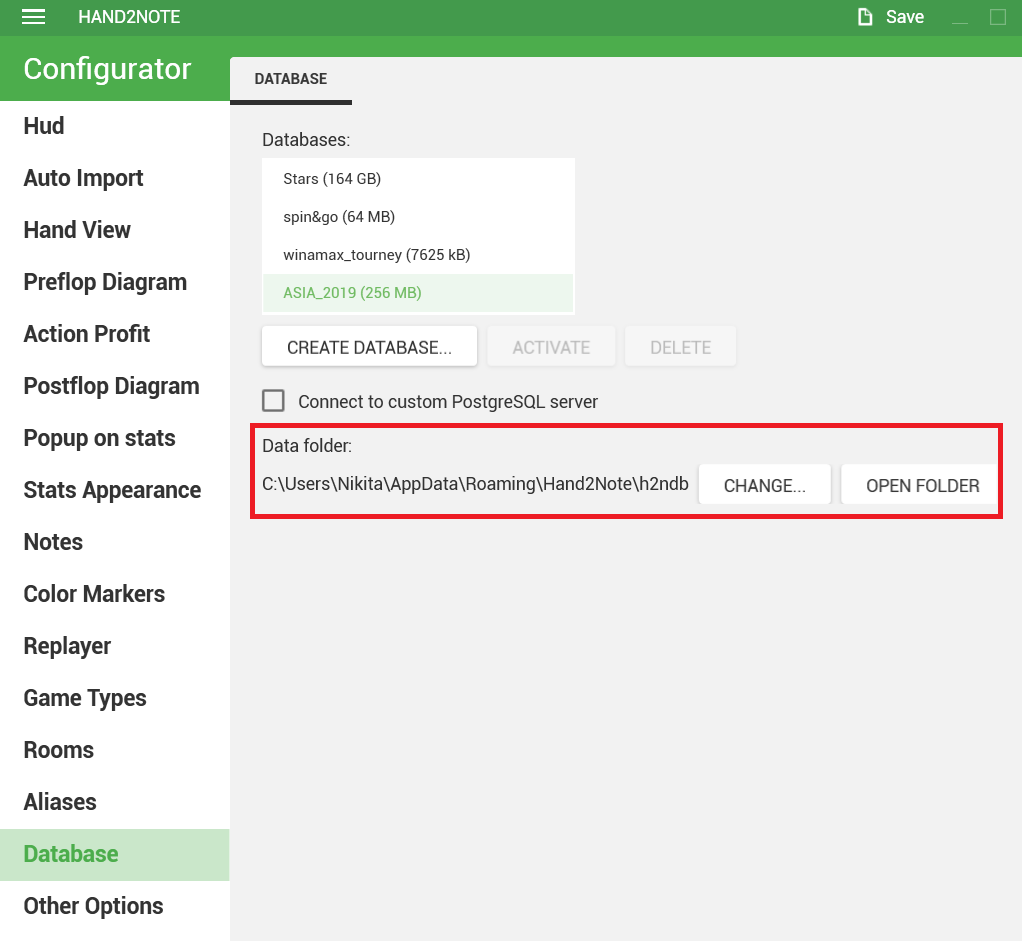
By default, Hand2Note database is stored on C drive. If you wish, you can change the location of the database, for example, if you run out of free space on that drive. To move the database files to another directory, do the following:- Go to Configuration → Database.
- Click Open Folder.
- Move the contents of the opened folder to the desired directory.
- Click Change folder and set the path to the folder where you moved the files on the previous step.
- Wait for Hand2Note to restart.
Where is database stored?
By default, Hand2Note database is stored in C:/Users/YourUsername/AppData/Roaming/Hand2Note/h2ndb folder. You can change the location of the database in the settings:
How to move database to another PC
By default, Hand2Note stores database in C:/Users/YourUsername/AppData/Roaming/Hand2Note/h2ndb folder. In order to move the database to another PC, just copy the contents of this folder and transfer it to a similar directory on another device.
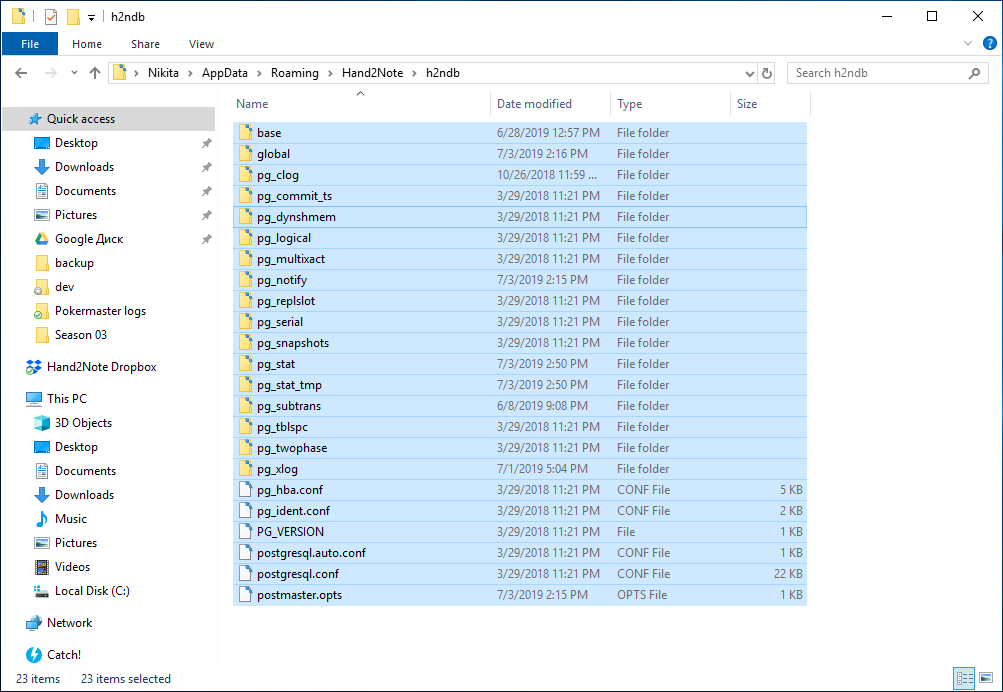
AppData is a hidden folder, to get into it, you have to enter the path manually, or configure the display of hidden files and folders (how?).
Also note that you can export the necessary hands from the program or take them from archive folders.
Hands archive
By default, Hand2Note saves all processed hands to the C:/Hand2Notehh folder.

If necessary, you can import hands from this folder. For example, if you have created a new database and want to load only relevant hands into it.