Hand2Note HUD Not Showing? Complete Troubleshooting Guide

If your Hand2Note HUD is not appearing on the poker tables, don’t worry — this is one of the most common issues players face, and in most cases it can be resolved in a few minutes. This guide is based on the official troubleshooting checklist used by the Hand2Note support team and covers every known cause step by step.
Why is my HUD not showing?
Hand2Note displays HUD overlays by reading hand history logs that your poker room generates in real time. If anything breaks this chain — the room isn’t producing logs in the correct format, or Hand2Note can’t find or import them — the overlay will not appear. Below we’ll check each link in this chain.
Step 1: Set the poker room language to English
Hand2Note can only parse hand histories written in English. Open your poker room settings and make sure both the interface language and the hand history language are set to English. This is a requirement for all supported rooms — if hand histories are saved in any other language, Hand2Note will not be able to read them.
Step 2: Launch in the correct order — Hand2Note first, room second, both as administrator
The launch order matters. Hand2Note must be running and fully loaded before you open the poker room client. If you launch the room first, Hand2Note may miss the initial hand history entries and fail to detect the table.
On Windows, make sure to run both Hand2Note and the poker room as administrator. Some poker clients run with elevated permissions, and if Hand2Note doesn’t have matching permissions, it cannot overlay the HUD on top of the table window. Right-click each shortcut and select Run as administrator.
Step 3: Verify the poker room module is installed
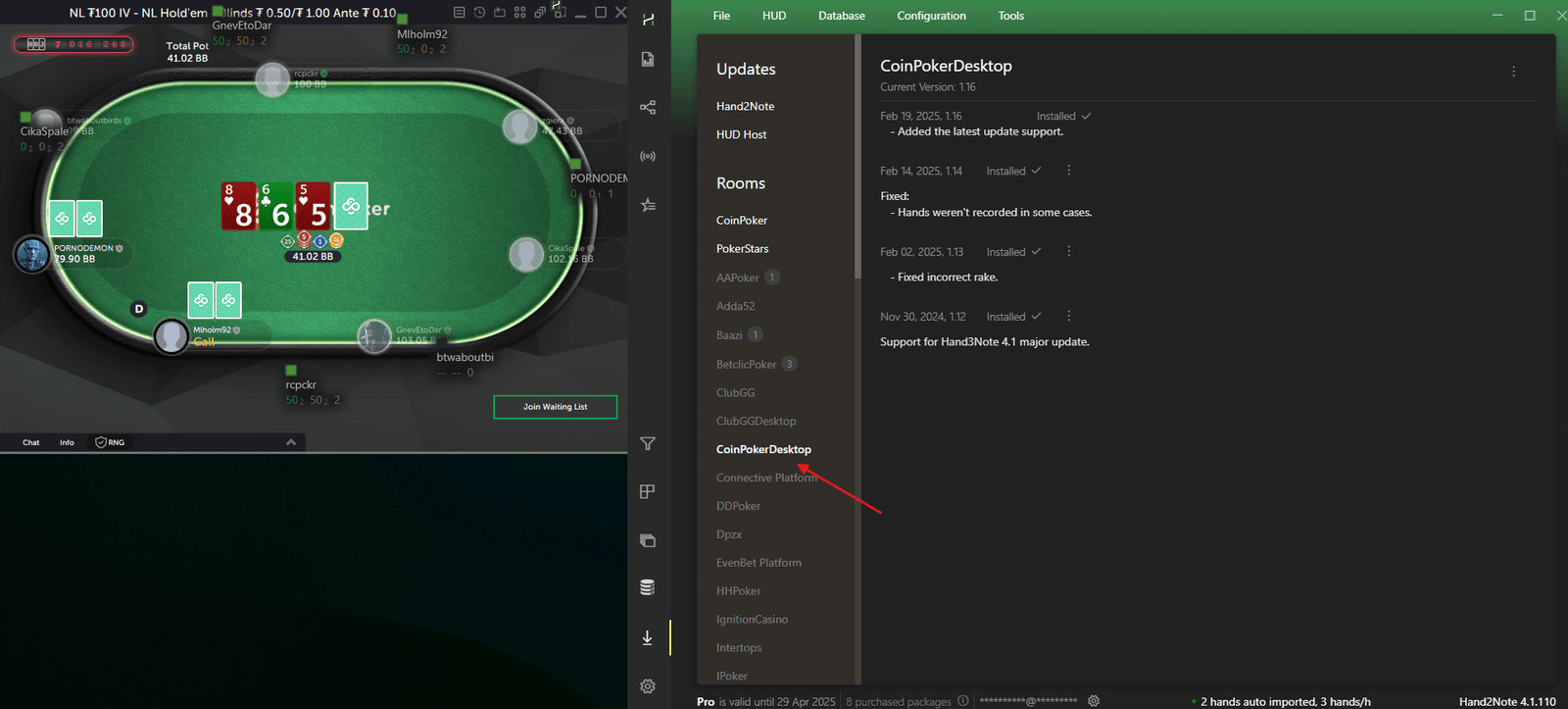
Hand2Note uses dedicated modules for each supported poker room. Without the correct module, it cannot read the hand history format of your room. Go to Configuration → Room Modules and make sure the module for your room is installed and enabled. If you don’t see it in the list, click Install next to the room name.
For example, if you play on CoinPoker, you need the CoinPokerDesktop module. For PokerStars — the PokerStars module, and so on. The complete list of supported rooms and their modules is available inside the Hand2Note application.
Step 4: Check that hand histories are being saved and imported
How Hand2Note receives hand data depends on your poker room type. There are two fundamentally different approaches:
Rooms with native hand history files
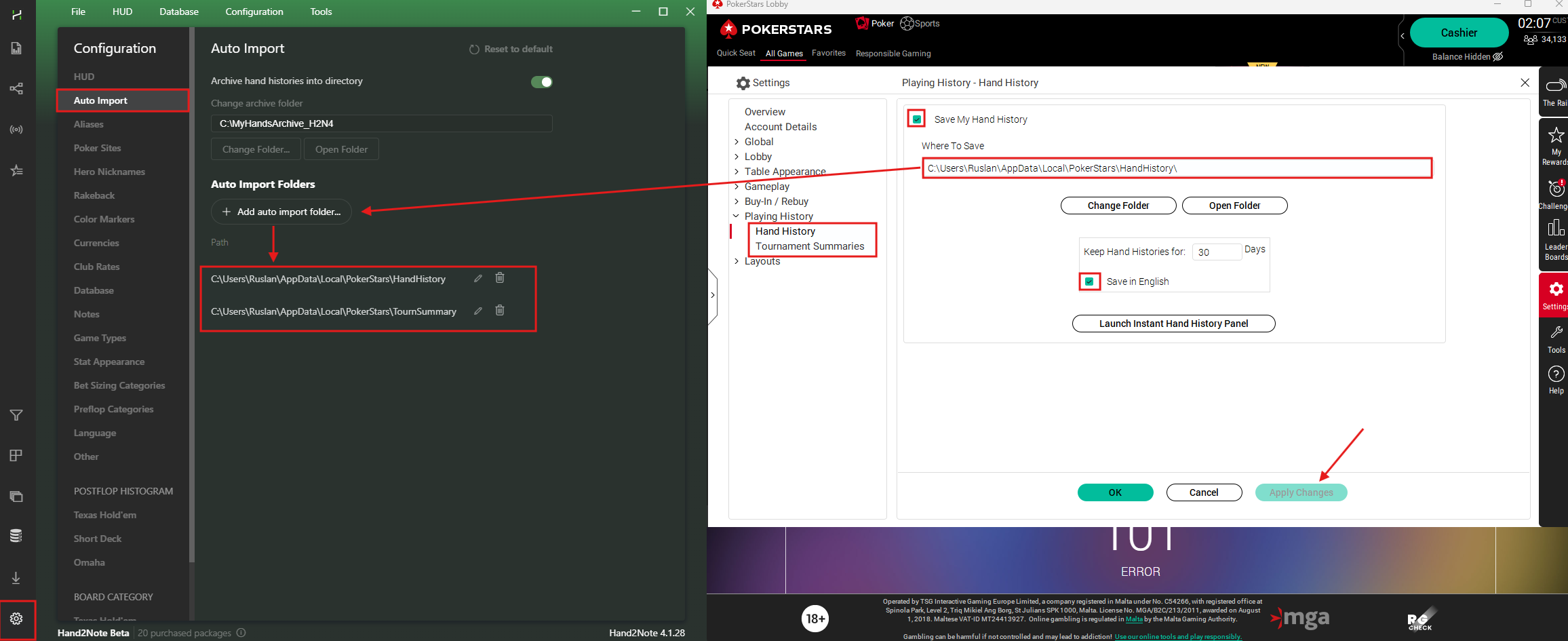
Most desktop poker clients — PokerStars, 888poker, WPN (Americas Cardroom), Winamax, iPoker and others — save hand history files to a folder on your computer. Hand2Note reads these files via auto-import.
- Open your poker room settings and find the hand history section.
- Make sure hand history saving is enabled and the language is set to English.
- Navigate to the folder where your room saves hand histories and verify that there are actual files there. If the folder is empty, the room is not saving hands.
- In Hand2Note, go to Configuration → Room Modules → [Your Room] and make sure the auto-import path points to the exact same folder where the room saves its files.
If the paths don’t match, update the path in Hand2Note to point to the correct folder. This mismatch is one of the most frequent causes of HUD not displaying, especially after reinstalling the poker client. For a detailed walkthrough on setting up auto-import paths for your specific room, see our guide on setting up auto-import in Hand2Note.
Rooms without native hand history (traffic-based)
Some poker rooms — typically mobile-first apps played through an Android emulator (such as PPPoker, ClubGG, PokerBros, Suprema Poker, and similar) — do not save hand history files at all. For these rooms, Hand2Note captures hands directly from the room’s network traffic. No auto-import setup is needed; just make sure the correct room module is installed and Hand2Note is running before you launch the room.
Verify that hands are being imported
Regardless of the room type, play a few hands and then check the Hand2Note main window — new hands should appear in the hands list. If hands are not being imported, double-check the room module and (for file-based rooms) the auto-import path.
Step 5: Look for the Hand2Note logo on the table
When Hand2Note successfully detects a poker table, it places a small Hand2Note logo on it. If you see the logo but the HUD stats are not displayed, the problem is with the HUD profile assignment — not with table detection or hand import. If there is no logo at all, Hand2Note is not detecting the table, and you should focus on the steps above.
Step 6: Check your Hand2Note subscription level
Your Hand2Note subscription must cover the stakes you are playing. For example, in Hand2Note 4.1 the Learner subscription only supports micro-limits. If you are playing above the limits covered by your plan, the HUD will not be displayed. Check your subscription details in Hand2Note under Account and make sure it matches your current stakes.

Step 7: Commercial HUD pack troubleshooting
If you are using a commercial HUD pack (not the default Hand2Note HUD), there are a few additional things to check. First, make sure the pack is installed correctly — an incorrect installation is a common reason for the HUD not working.
- Make sure you have an active license for the HUD pack. If the license has expired, the pack’s HUD will not display.
- Some commercial packs include dynamic options that are not supported on all rooms. If dynamic elements are present and the room doesn’t support them, parts of the HUD — or the entire HUD — may not appear.
- To rule out the pack as the cause, try switching to the default Hand2Note HUD and see if it displays correctly. If it does, the issue is with the commercial pack, not with Hand2Note itself.
Step 8: Update Hand2Note and your poker room
Poker rooms frequently update their software, which can change hand history formats or table window properties. Hand2Note releases regular updates to maintain compatibility. Make sure both your poker room client and Hand2Note are running the latest versions.
Your current Hand2Note version is displayed in the bottom-right corner of the main window. If a newer version is available, you’ll see a notification at the bottom prompting you to update — it is recommended to install it right away. You can also access the update section through the left-side menu (the second-to-last item, before Settings). Before updating, close all poker room clients to avoid any conflicts. This single step resolves the issue for a significant number of players.
Step 9: Add Hand2Note to antivirus exclusions
Some antivirus programs and firewalls can block Hand2Note from reading hand history files or overlaying the HUD on poker tables. Add both the Hand2Note installation folder and the Hand2Note process to your antivirus exclusion list. On Windows, also make sure Hand2Note is allowed through Windows Defender Firewall.
Step 10: Open tables one at a time
Some poker rooms can have issues when multiple tables are opened simultaneously. The tables may receive the same internal index, which confuses the table detection system. This is particularly common on rooms like CoinPoker.
Try opening one table at a time, waiting 1–2 minutes for the HUD to appear, and then opening the next table. This gives Hand2Note enough time to properly identify each table in the logs.
Common room-specific issues
Different poker rooms may have unique quirks that affect HUD display:
- PokerStars — make sure the hand history language is set to English in PokerStars settings. Hand2Note cannot parse hand histories written in other languages.
- GGPoker / GGNetwork — HUD is not supported on GGPoker because the room does not provide real-time hand histories to external software.
- CoinPoker — install the CoinPokerDesktop module and open tables one at a time. Dynamic HUD is not supported due to room policy. Read our full CoinPoker HUD guide for details.
- WPN (Americas Cardroom) — hand history saving is disabled by default. Enable “Save Hand History” in the WPN client settings before starting Hand2Note.
- Winamax — uses a non-standard hand history format. Make sure you have the latest Hand2Note version with the Winamax module installed and updated.
- iPoker Network — some skins on this network save hand histories in different folders. Double-check the path in your Hand2Note room module settings.
Still not working?
If you’ve gone through every step above and your HUD is still not showing, the issue may be specific to your system configuration. Contact the Hand2Note support team — they are very responsive and can help you diagnose the problem quickly. When reaching out, include:
- Your Hand2Note version number (displayed in the bottom-right corner of the main window).
- The poker room you are using.
- A description of what happens when you open a table — does the table appear in Hand2Note’s table list? Is the Hand2Note logo displayed on the table?
Ideally, to speed up the troubleshooting process, prepare a full-screen screenshot showing both the open poker table and the Hand2Note main window at the same time. Make sure both windows — the poker table and Hand2Note — are fully visible. This gives the support team a solid overview and helps them assist you much faster.
In our experience, the support team typically resolves HUD display issues within a few messages. You can also visit our Getting Started with Hand2Note guide if you want to set up everything from scratch.

Latest guides
-
 How to Use Hand2Note on Mac: Complete macOS Guide Oct 5, 2026
 -
 Exploit Basics: Passive Player Profile Apr 9, 2026
 -
 Hand2Note Popup Editor: Creating a Professional Popup Mar 28, 2026
 -
 Hand2Note Pro Pricing Reduced in 2026 Mar 19, 2026
 -
 How to Analyze Fish Ranges: Limp, Limp-Raise, and Limp-Fold Mar 13, 2026
We regularly publish new Hand2Note 4 guides on our Discord server.
Join Discord Server