Creating Expression Stats in Hand2Note
Hand2Note allows you to create and use custom metrics based on formulas — these are called “expression stats”.
Simple stats only show the frequency of certain actions in a hand, such as “Open Raise” or “Any Bet flop”. Expression stats, such as “Aggression Frequency” or “4Bet Range”, are not indicators of the frequency of any actions and are calculated using a specific mathematical formula that takes simple stats as its arguments.
Each expression stat is essentially a mathematical expression where:
- Arguments are the simple stats you choose.
- Functions are operations (addition, multiplication, conditional operators) that define the logic of the expression stat calculation.
Expression stats allow you to refine or simplify the analysis of any displayed statistics. For example, with the “Aggression Frequency” stat, a player can see simplified trends in an opponent’s playing style. Or refine their 4-bet range, expressing it not as a percentage of a specific action but as a percentage of the entire range of hands — for this, the “4Bet Range” stat is used.
Example of Creating the Expression Stat “4-Bet Range“ in Hand2Note
Creating any expression stat in Hand2Note occurs in stages:
- Defining the logical formula embedded in the stat (defining the stat logic).
- Creating the formula for the expression stat, understandable to Hand2Note.
- Creating the expression stat in Hand2Note.
Defining the Logic of the Stat “4-Bet Range“
First, you need to determine what logic is embedded in the “4-Bet Range” stat:
It shows what part of all possible starting hands a player uses to make a 4-bet in a specific situation (against an opponent’s 3-bet).
To calculate this, we look at the sequence of actions a player takes when making a 4-bet:
- First: The player makes an initial raise (open raise). This is the first argument that narrows the entire range of hands (100%) to their open raise range.
- Then: When their raise receives a 3-bet, they respond with a 4-bet. This is the second argument that further narrows their open raise range to the final 4-bet range.
Then the obtained value is divided by 100 for a visual display in percentages.
As a result, the logical formula for the “4-Bet Range” stat is:
Player's open raise percentage * Player's 4-bet percentage / 100Creating the Formula for the Expression Stat “4-Bet Range“, Understandable to Hand2Note
In Hand2Note, the arguments in expression stat formulas are simple stats. In our case, we need two simple stats that we created in Hand2Note in advance:
- Stat “Open Raise” — displays the player’s open raise percentage.
- Stat “4Bet” — displays the player’s 4-bet percentage.
In expression stat formulas, you must use the exact names of the simple stats. Also, avoid situations where multiple simple stats with the same names exist in the Hand2Note configuration.
Now you need to determine the functions used in the “4-Bet Range” stat.
When creating expression stat formulas, as well as in “multiple players” and badges in Hand2Note, functions are used:
| Value | Returns the stat’s execution value in percentages. |
| Cases | Returns the number of cases for the stat. In other words, it returns the number of hands where the player’s actions met the condition set in the stat. |
| Opps | Returns the number of hands where the player had the opportunity to meet the condition set in the stat. This value is also called the “sample” for the stat. |
| VsHeroCases | Returns the number of hands where the player played against the Hero and their actions met the condition set in the stat. |
| vsHeroOpps | Returns the number of hands where the player played against the Hero and had the opportunity to meet the condition set in the stat with their next action. |
| WonHandCases | Returns the number of hands where the player’s actions met the condition set in the stat, and they won the hand. |
| WentToSDCases | Returns the number of hands where the player’s actions met the stat condition, and they went to showdown. |
| WonHandAtSDCases | The number of hands where the player, having met the stat condition, not only went to showdown but also won. |
| AmountWon | Returns the number of big blinds won in hands that met the condition set in the stat. |
| ActionProfit | Returns the ActionProfit value in big blinds in hands that met the condition set in the stat. |
When using each function with simple stats, the function must be written at the beginning, followed by the name of the simple stat in parentheses, for example:
Cases(Open Raise)Also, when writing expression stat formulas, working with “multiple players”, or creating badges in Hand2Note, you are allowed to use the conditional operator if and other mathematical functions.
Since in our formula both stats (“Open Raise” and “4Bet”) need to display their execution percentage, we need the Value function.
As a result, the formula for the “4-Bet Range” stat will be:
Value(Open Raise) * Value(4Bet) / 100Creating the Expression Stat “4-Bet Range” in Hand2Note
To create an expression stat in Hand2Note, you need to open the stat editor by left-clicking (LMB) on the “Stat Editor” icon (1). Then, to create a new stat, click on “+ New Stat” (2), in the window that appears, set the name (3) (for example, “4-Bet Range”) and click “OK” (4).

Next, you need to set the necessary parameters for the created “4-Bet Range” stat. First, make sure that after its creation, it is open for editing in the stat editor (1). Then go to the “Expression” menu (2) and select the required input condition format (3).
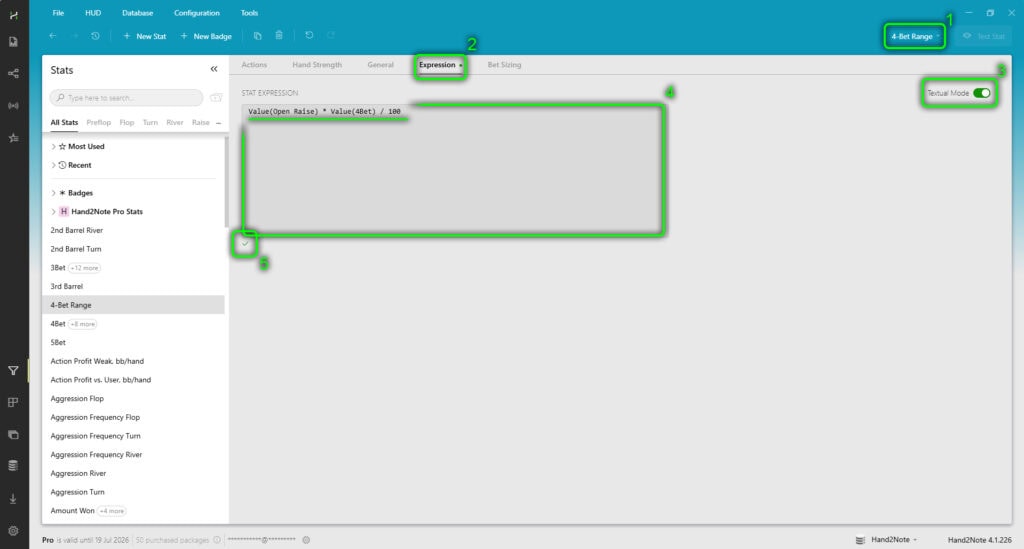
In this example, we will consider entering the stat execution condition in “Textual Mode”. You can also use the regular input condition format — this does not affect the result but only provides the opportunity to edit the condition in a way that is convenient for you.
Next, in the formula input area, enter the previously composed formula for the “4-Bet Range” indicator (4). If the formula is entered correctly, a green checkmark should appear below it (5).
This is how expression stats are created in the Hand2Note program using the “4-Bet Range” indicator as an example. Now it can be used in HUDs and popups. To correctly add and use expression stats in HUDs, we recommend reading the articles:
- “HUD Editor Part 1: Features and Navigation“
- “HUD Editor Part 2: Creating a Static HUD“
- “HUD Editor Part 3: Creating a Positional HUD“
- “HUD Editor Part 4: Creating a Dynamic HUD“
Conclusion
Understanding how expression stats work opens the way to refined game analysis using Hand2Note. As we have seen, they do not just display numbers but reveal connections between actions, transforming raw frequency data into meaningful strategic indicators.
Thus, you master not just a program function but various analyses of opponents’ games. Now you can construct stats to test any hypotheses about opponents’ play, turning raw data into personalized and strategically significant metrics. Start with simple formulas, experiment — and your HUDs and popups will speak a new, detailed language of strategy.

Latest guides
-

 Hand2Note Pro Pricing Reduced in 2026 Mar 19, 2026
 -
 How to Analyze Fish Ranges: Limp, Limp-Raise, and Limp-Fold Mar 13, 2026
 -
 Hand2Note Popup Editor: Creating a Simple Popup Mar 10, 2026
 -
 Hand2Note 4.1: Overview of key updates 2025–2026 Mar 10, 2026
 -
 Hand2Note HUD Not Showing? Complete Troubleshooting Guide Mar 10, 2026
We regularly publish new Hand2Note 4 guides on our Discord server.
Join Discord Server