Troubleshooting
In this section, you will find instructions for solving the most common problems encountered when using Hand2Note.
In most cases Hand2Note works smoothly, but sometimes problems happen with any poker software. In case of Hand2Note, it could be HUD or database issues, or critical errors appearing when using the program. In the list below we have solutions for the most of such problems.
Solutions for typical Hand2Note issues
Dashes instead of stats or 0 hands on players in HUD
First of all, check that your subscription are suitable for the played limits, and the license key is entered into the program. If you are using the free version for micro stakes or trial, then skip this step.
In case you are using a commercial HUD profile, you need to contact the developer and clarify that your license is active and suitable for your type of game, and the pack is installed correctly.
If the licenses are ok, but you see dashes instead of stats values in HUD and popups, or it’s always 0 hands on players, do the following:
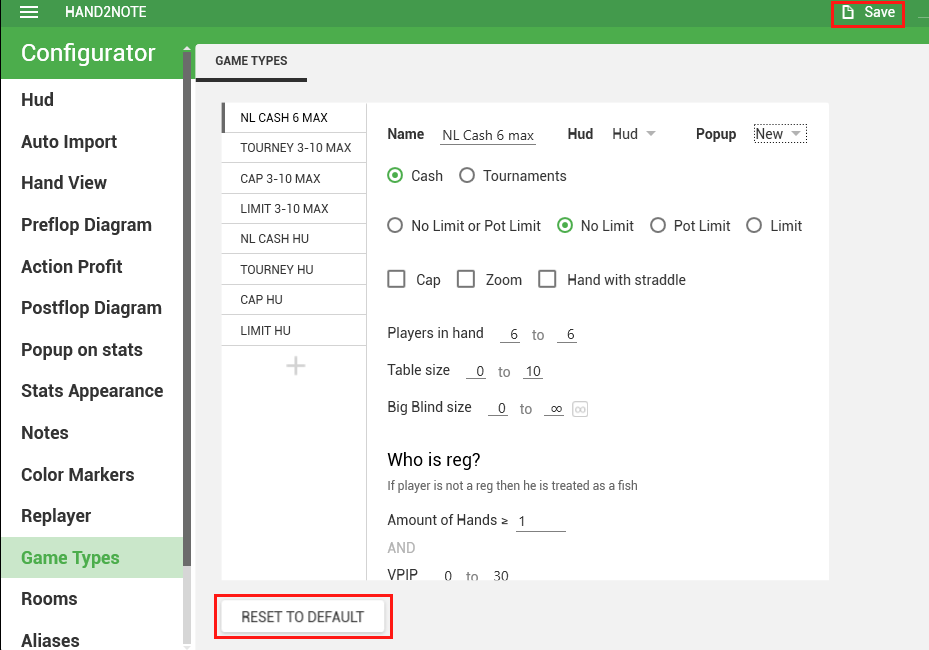
- Go to Configuration → Game Types, click Reset to default, then Save
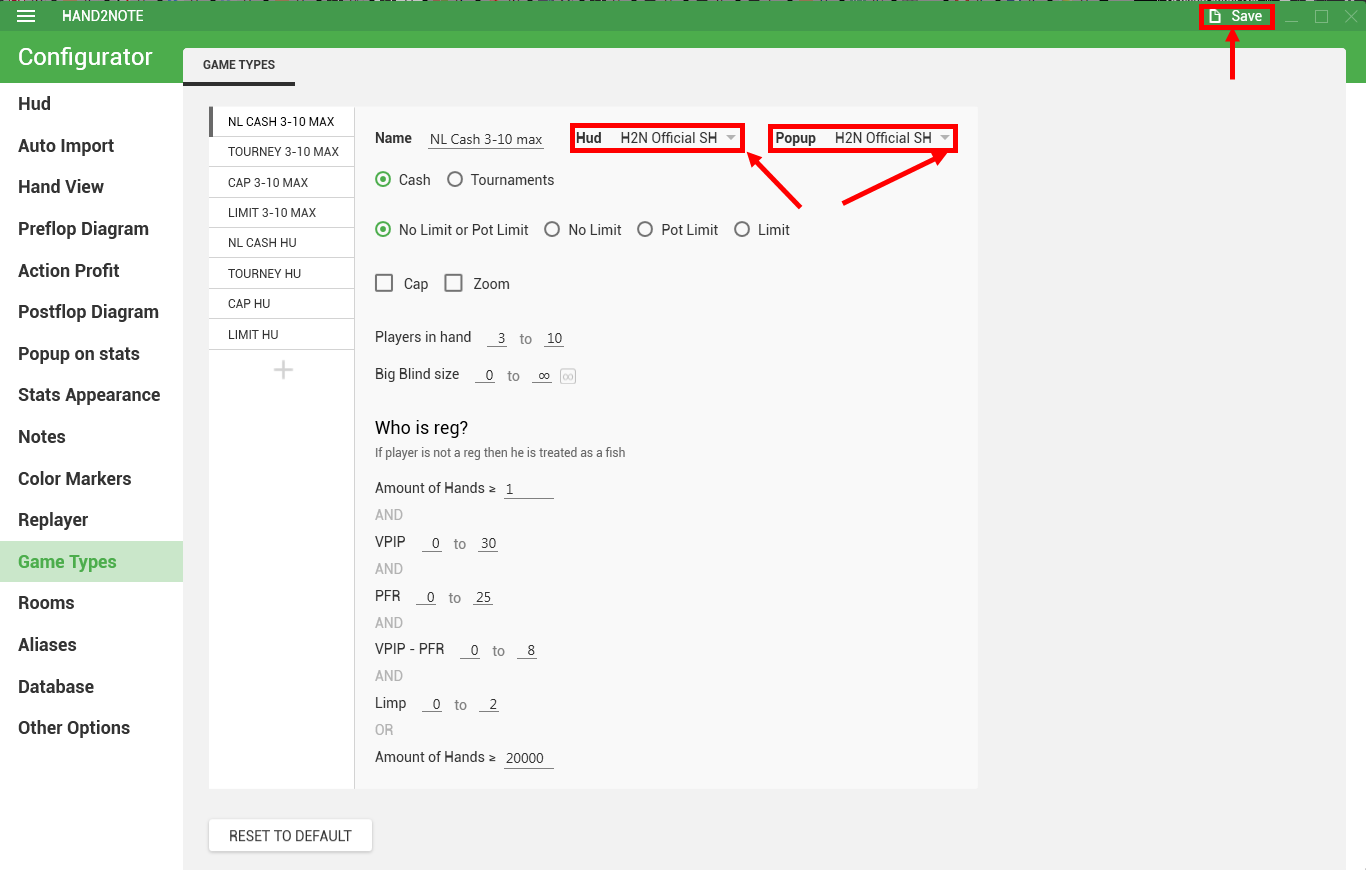
- Select desired HUD and popup profile in your game type
- Rebuild the stats in the main program window

If the above steps did not help, contact support service.
Loss of hands in Asian rooms
Occasionally Hand2Note may lose some hands while playing in Asian rooms due to the specificity of the process of collecting hands from these apps. Asian rooms don’t save any hand histories at all, Hand2Note grabs all the hands directly from the traffic. The slightest failure in the network can lead to packet loss and, as a result, to hand loss.
Hand2Note team working hard to improve stability, and losses do not exceed 1-2% of the total number of hands. Losses occur at random points in time, so it practically does not affect the overall result and, most importantly, the value of stats at a distance.
A few things you can do to reduce the probability of losses:
- Use stable internet connection
- Keep Hand2Note updated
- Add Hand2Note into your antivirus exceptions list
- Always run Hand2Note and emulator as administrator
If you notice that Hand2Note loses a lot more hands than usual, please contact customer support service.
Failed to open database connection
If such an error occurs during the program startup, it means that Hand2Note cannot connect to its built-in database server. To resolve this issue, do the following:
- Open the list of installed programs and remove all Microsoft Visual C++ Redistributable 2013 and 2015 packages (do not touch packages from other years).
- Download and install the following packages again (if you have 64-bit Windows, install both x86 and x64 versions):
- Delete the DbServer.cg file from the C:/Program Files/Hand2Note folder. If there is no such file, skip this step.
- Reboot your PC.
After that, try running Hand2Note as an administrator.
If the error persists, then most likely your database has been corrupted. Delete the folder with the database (by default, it is C:/Users/YourUsername/AppData/Roaming/Hand2Note/h2ndb) and run the program. After launch, you can import your hands from archives (C:/Hand2NoteHh) into a clean database.
Hand2Note freezes or works slowly
First of all, you need to do the following:
- Disable antivirus or add Hand2Note installation folder into exceptions list
- Install all the latest Windows updates
- Update Hand2Note to the latest version
- Remove log files, disable logging
If the problem persists after these steps, try to make a full reinstall.
If you have done all the steps described above including full reinstallation according to the instructions, and Hand2Note keeps freezing or performing slowly, contact support service.
Hand2Note crashes when entering Sessions/Reports
If Hand2Note crashes with a critical System.InvalidOperationException error when you try to enter the Reports or Sessions section, then most often this problem can be solved by a simple rebuilding of statistics. Click «Clear stats», then «Build stats» in the main window, and wait for the process to finish.

If the problem persists, then try to create a new database and import the necessary hands into it. If this also doesn’t help, try reinstalling the program according to the instructions.
In case none of the above measures work, contact the support service.
Other issues
If your case is not listed, or after performing the recommended actions, the problem persists, contact Hand2Note support. The team will help to resolve your issues shortly.