HUD
Default profiles
Hand2Note comes with two standard profiles of HUDs and popups – default and PokerMaster default. They contain a basic set of stats, sufficient for a confident game at the initial level. However, these HUDs can also be used by experienced regulars, for example, in Asian rooms, where the sample on players is often insufficient for the productive use of complex HUDs.
HUD creation
Hand2Note has very flexible tools for designing your HUD. If you are going to make a HUD yourself, first of all, read the instructions for creating HUD and creating stats. You can also take personal lessons on creating a HUD of any complexity.
How to insert aggression and showdown stats into HUD
Stats such as AF, Afq, wtsd, w$sd, wwsf are expression stats. To insert them into HUD, do the following:
- Right-click on a cell and select Insert → Expression stat…
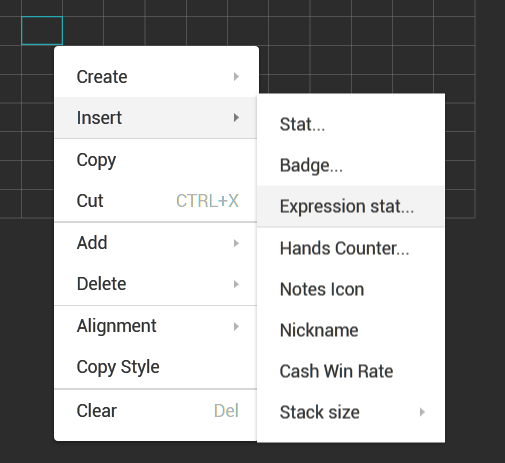
- In the search window that appears, start typing the name of the stat:
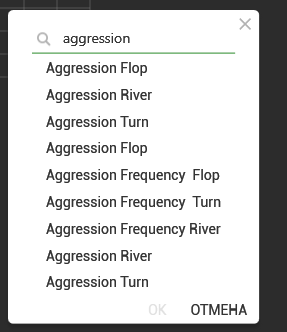
Default showdown stats are called like that:
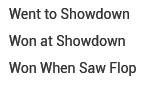
- Select the desired stat and click OK
How to insert hands counter?
The number of hands for player is an expression stat. By default it is called hands. In order to add a player’s hand count into your HUD, follow the same instructions as when adding any other expression stat:
- Right-click on the cell, select Insert → Expression stat:
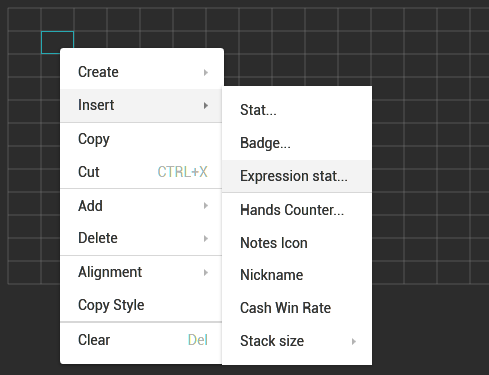
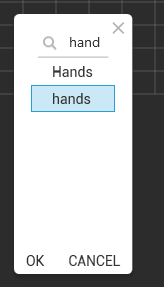
- In the search bar that appears, start entering the name of the stat, select it and click OK:
How to add abbreviations to stats?
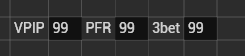
To add abbreviations to stats in HUD, just create additional columns and enter the required text into the cells to the left of the stats:
You can add and remove columns/rows using these buttons on the toolbar:

How to insert nickname, winrate and stack size into HUD
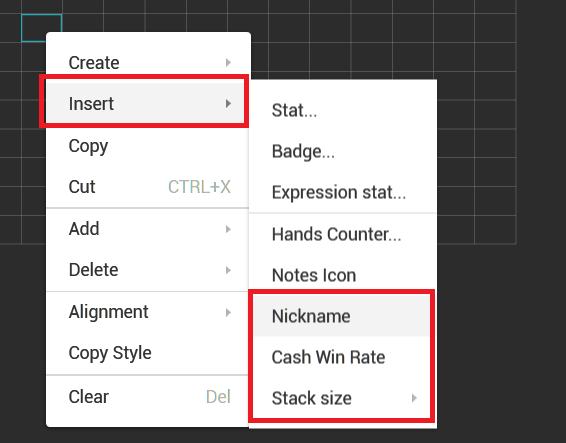
To insert this information into your HUD, open the editor (F5), right-click on the desired cell and select the required menu item:
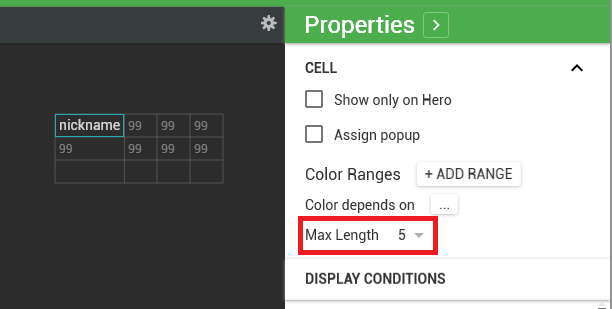
If you do not want the players’ nicknames to appear entirely and take up a lot of space in the HUD, you can set the maximum allowed length. To do this, highlight the cell with the nickname and set the maximum length parameter in the right part of the screen. In the example below, the player’s nickname will be cut off if its length exceeds 5 characters.
When adding a stack size, you can choose one of three options.
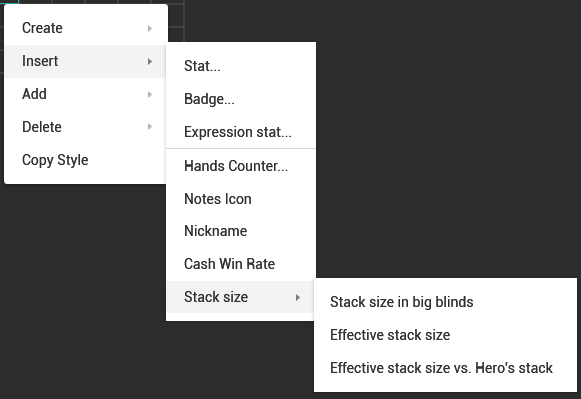
- Stack size in big blinds is simply the current size of the player’s stack, regardless of the amount of chips in other players stacks.
- Effective stack size is the maximum stack size among opponents, not exceeding the size of the player’s stack. In other words, this is the maximum amount of chips that player can win or lose in one hand.
- Effective stack size vs Hero’s stack is the same effective stack, but not against all opponents, but only against hero.
All stack sizes are shown in big blinds.
Import from HM2/PT4
Automatic HUD import from other trackers is not supported. So if you want to import your HUD and popups from another tracker, use private HUD order service. Please note that this service is paid. Carefully read the information on the link. If you are satisfied with the conditions, send a request to the support service.
Ready-made packs
You can choose one of the ready-made commercial packs in the official store. Pack developers usually provide free trial periods for their products. Therefore, you can contact the authors and try several options, and then choose the most suitable for yourself. You can find developers’ contacts in the description of each product in the store. Please note that in order to use commercial packs, you must have Hand2Note license key. That is, you need at least once to buy any subscription. Further, if you play micro stakes, it is not necessary to renew the subscription.
HUD FAQ
How to switch HUD profile
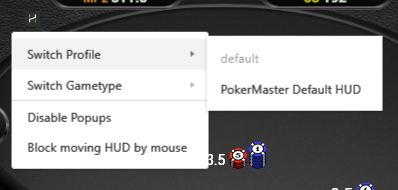
You can switch HUD profile during the game. Click on the “H” icon at the table and select the appropriate item in the menu that appears.
However, a more reliable and correct approach is to install the necessary profiles in Hand2Note settings. To do this, go to Configuration → Game Types and select the desired HUD and popup profiles for each type. Note that you can use different HUDs for different rooms.
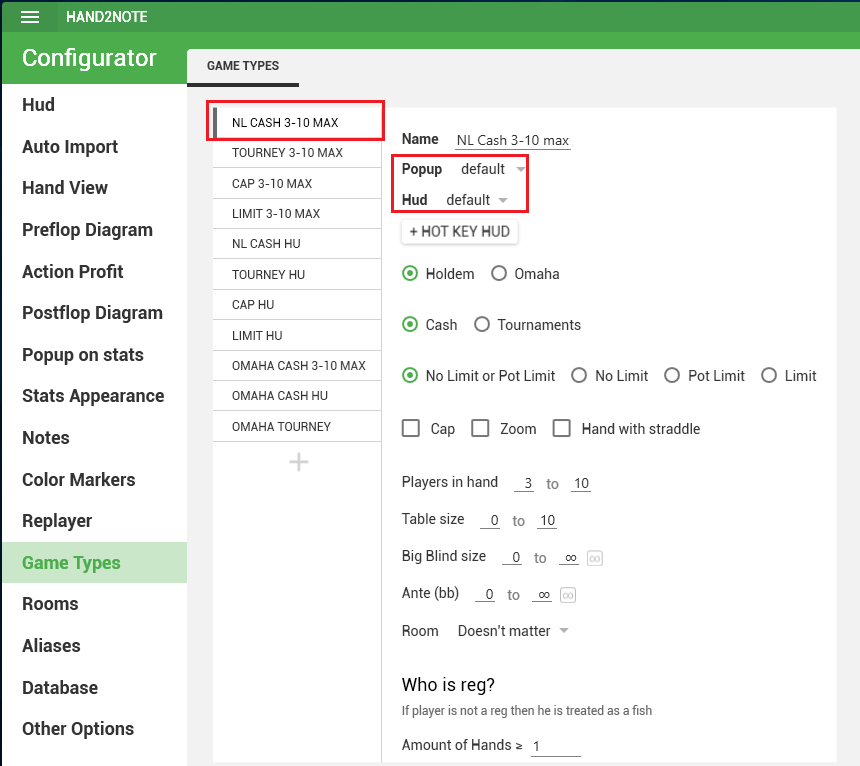
In order for all previously played hands to be taken into account in the new profile, you need to rebuild the statistics after the changes made. Without rebuilding, the hand counter on players in the new HUD will be started from scratch.
How to activate session HUD
During the game, to enable the displaying of stats for hands played on the current table only, double right-click on a certain player’s HUD block. To return statistics to its original state, double-right-click again.
Please note that this feature does not work on Zoom tables.
How to disable HUD
Method #1
You can disable the module responsible for collecting hand history from your room. To do this, kill the corresponding process in the task manager. The process starts after you open a room.

You also need to remove the room hand history folders from auto import list in Hand2Note, if you have added them.
Please note that if you use this method Hand2Note will not grab hands from your room. If you want to disable the HUD, but collect hand histories, use the second method.
Method #2
There is a filter in HUD editor that allows you to customize the display of HUD only in certain rooms. You can highlight the entire table and assign a filter with only desired rooms to it.

If you want to completely disable HUD, just select any one arbitrary room you are not playing in.
Using different HUD’s in different rooms
If you play in several rooms and want to use different HUD and popup profiles in each or some of them, Hand2Note gives you this opportunity. To configure the display of certain HUDs in specific rooms, follow the instructions below.
Go to Configuration → Game Types. First of all, you can reset the settings to default values to make sure that you haven’t accidentally changed any parameters.

Set the profiles to be used in most rooms by default. For cash games, the standard game types are NL CASH 3-10 MAX and NL CASH HU.
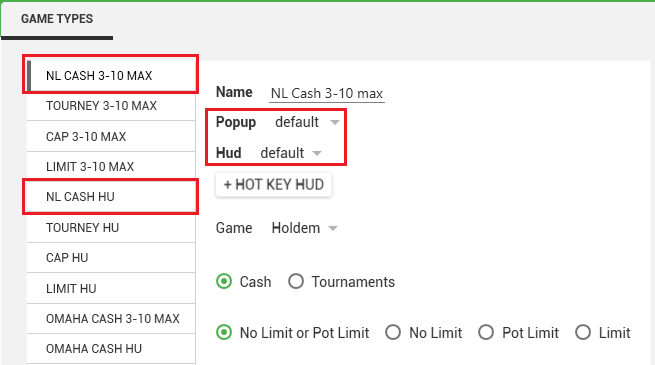
If you don’t want the statistics for heads-up to be counted separately, simply remove NL CASH HU type, and in NL CASH 3-10 MAX, set the “Players in the hand” filter to “from 2 to 10”.
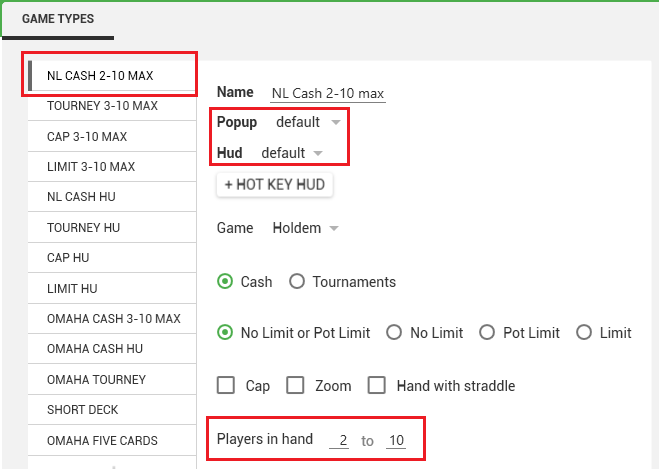
Now you need to create separate game types for the rooms in which you want to see HUD, different from what you indicated in the previous step. To add a new type of game, click on the “+” at the bottom of the list of existing types. Set an arbitrary name and filter “Room”. Created types must be placed at the top of the list.
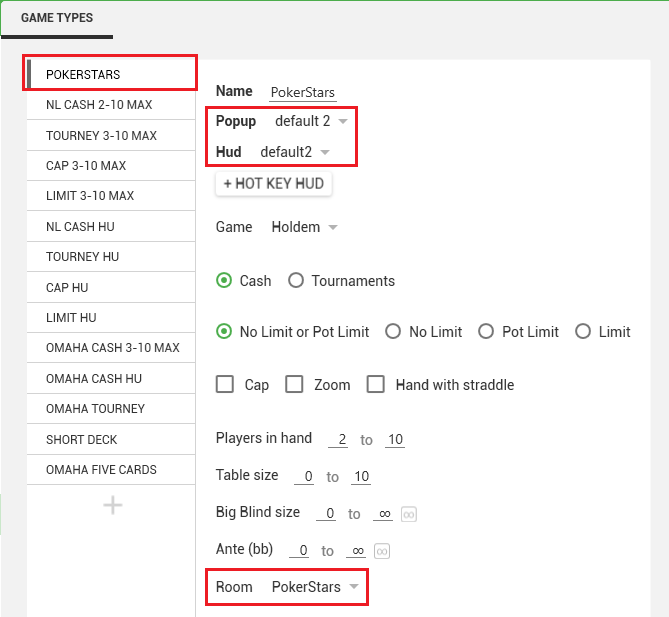
After the changes are made, it is necessary to rebuild the statistics so that the new games type settings are applied to the entire database.
More answers
Free HUD
Do not miss the opportunity to take advantage of our offer to get a free professional HUD.